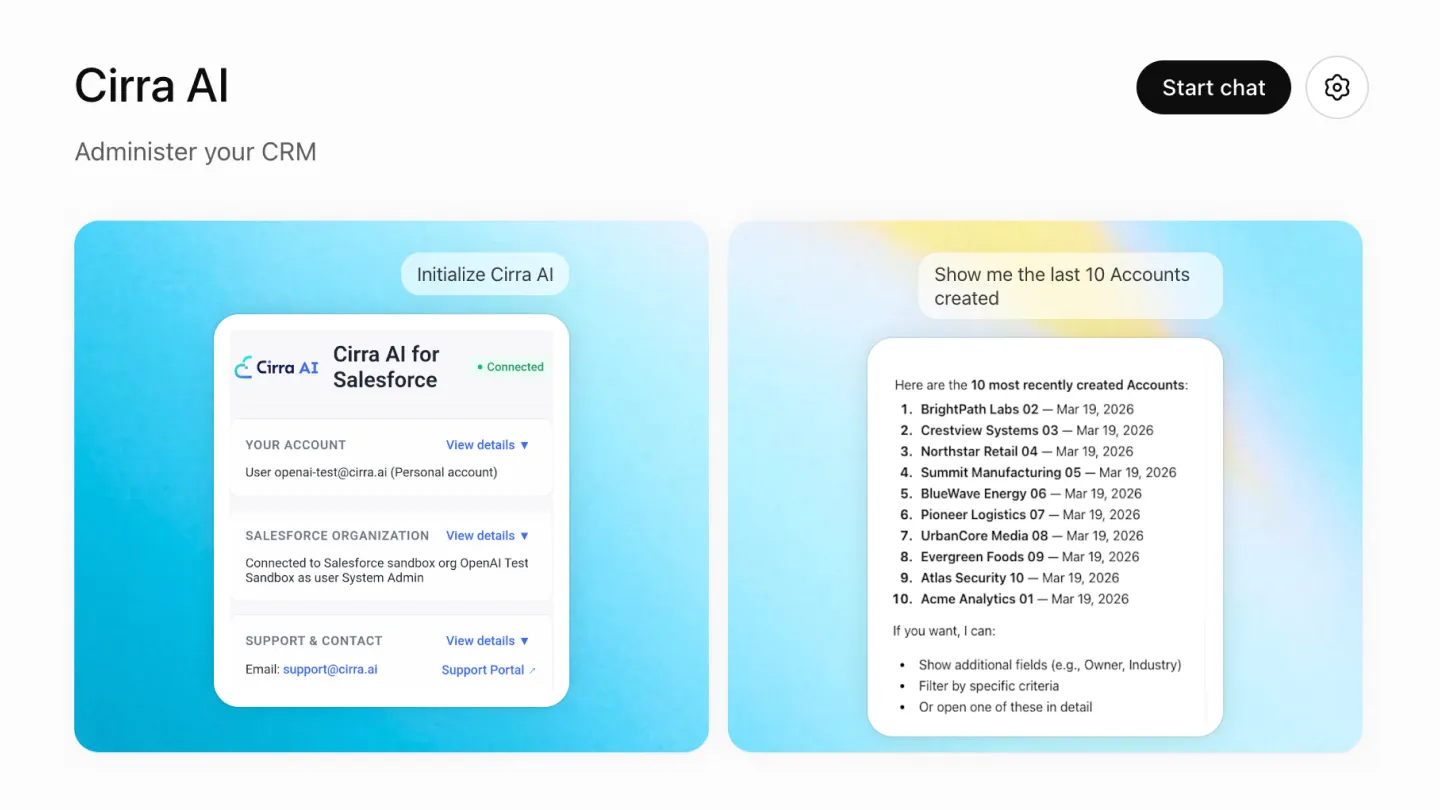
Cirra AI is officially live on the ChatGPT App Directory. One-click install, no developer mode required. If you’ve been waiting for a faster way to administer your Salesforce org from inside ChatGPT, this is it.
Here’s what’s changed, what you can do, and how to get started.
Why This Matters
First, OpenAI has a rigorous review process for apps in the ChatGPT App Directory. Listed apps like Cirra AI have demonstrated adherence to best practices for security and tool documentation.
Second, connecting Cirra AI to ChatGPT previously required enabling developer mode and manually configuring an MCP server, adding friction for anyone who wasn’t technically inclined. The ChatGPT App Directory listing removes that barrier entirely.
You install the app once. You connect your Salesforce org. Then you describe what you need in plain language, and Cirra AI handles the rest — executing changes directly against your org’s metadata layer through the Salesforce Tooling and Metadata APIs.
No setup menus. No developer environment. No command lines or XML files.
What You Can Do Inside ChatGPT
Cirra AI gives you natural-language access to the full Salesforce metadata layer. That covers the configuration and structure of your org — not just the records in it. Here’s a breakdown of what that looks like in practice:
Audit Permissions and Security Setup
Understanding who has access to what in a Salesforce org is notoriously time-consuming. Permission sets, profiles, field-level security, sharing rules — the surface area is large, and the Setup menus don’t make it easy to get a clear picture quickly.
With Cirra AI, you can ask: “Show me every profile that has edit access to the Opportunity object” or “Which users can view the Contract Value field?” — and get a clear answer without clicking through a dozen Setup screens. You can also make changes in the same conversation: tighten a permission set, adjust field-level security, or update a profile, all in plain language.
Create Objects, Fields, and Page Layouts
Building out your data model or updating it to reflect how your business has evolved is one of the most common — and most tedious — admin tasks. Creating a custom object, adding a field, then wiring it into the right page layouts typically means moving between several Setup menus and getting every setting right manually.
With Cirra AI, you describe what you need: “Create a custom object called Vendor Contract with a lookup to Account, a currency field for Contract Value, and a text field for Contract Owner” — and it builds it. You can then follow up: “Add Contract Value to the Vendor Contract page layout in the Details section” — and it updates the layout accordingly.
Create and Update Flows and Apex
Automation is where Salesforce orgs get complex fast. Flows and Apex are powerful, but they require technical knowledge to build and maintain — which is why automation backlogs pile up even when the underlying logic is straightforward.
Cirra AI can create and update flows based on a plain-language description of the business logic. You describe the trigger, the conditions, and the outcome. Cirra AI builds it. For Apex, you can ask Cirra AI to create or update classes and triggers, which it handles via the Tooling API.
This isn’t a replacement for a senior developer on complex, bespoke work. But for standard automation and code changes, it closes the gap significantly.
Debug User Access Issues
Access issues are disruptive and often urgent — a rep can’t see a record, a manager’s dashboard is blank, a new hire doesn’t have the right permissions from day one. Diagnosing these issues usually means working backwards through profiles, permission sets, role hierarchies, and sharing rules.
Cirra AI can run that diagnosis for you. Describe the symptom — “Why can’t Marcus see Opportunity records owned by his team?” — and Cirra AI traces the permission chain to find the gap. Once diagnosed, you can fix it in the same conversation.
How to Get Started
Getting set up takes a few minutes:
- Sign up for a Cirra AI account.
- Connect your Salesforce org — Cirra AI uses OAuth to authenticate, so no passwords or API keys are stored and access is governed by your existing Salesforce permissions.
- Install the app from the ChatGPT App Directory — search for Cirra AI, click install.
- Start a conversation — describe what you need. Cirra AI reasons over your org and executes the change.
That’s it. No developer mode, no CLI configuration, no YAML files.
A Note on How Cirra AI Works
One question that comes up often: what exactly does Cirra AI have access to?
Cirra AI works across both the configuration (metadata) and the data layers. Salesforce’s own hosted MCP Servers read your metadata and read/write records, but they don't modify your org's configuration — that takes a developer environment and the separate DX MCP Server. Cirra AI lets you update the org itself: objects, fields, layouts, rules, permissions, flows, and Apex. Of course, it is best practice to make configuration changes in a sandbox, not directly in your production org — and Cirra AI lets you connect to multiple orgs for exactly that reason.
Importantly, Cirra AI is permission-aware. It can only do what the authenticated Salesforce user is authorised to do. If your connected user can’t edit a Permission Set in Setup, Cirra AI can’t either. Every action is OAuth-authenticated and sits within your org’s existing governance model.
On top of that, you can further restrict access to avoid exposing sensitive data to LLMs, even if users have access via the UI.
Start Free
If you’re already on ChatGPT, you can install Cirra AI from the App Directory today.
If you don’t have a Cirra AI account yet, sign up for a free trial at cirra.ai/sign-up — no credit card required.
Your Salesforce org, administered in plain language. That’s what’s now available, directly inside ChatGPT.